
Password reset, login, and QR check-in.
Follow these steps to reset your password, log in to my.uacs.edu.mk, and check in for attendance by scanning the QR code your professor shows in class.
Step 1
Open the student platform
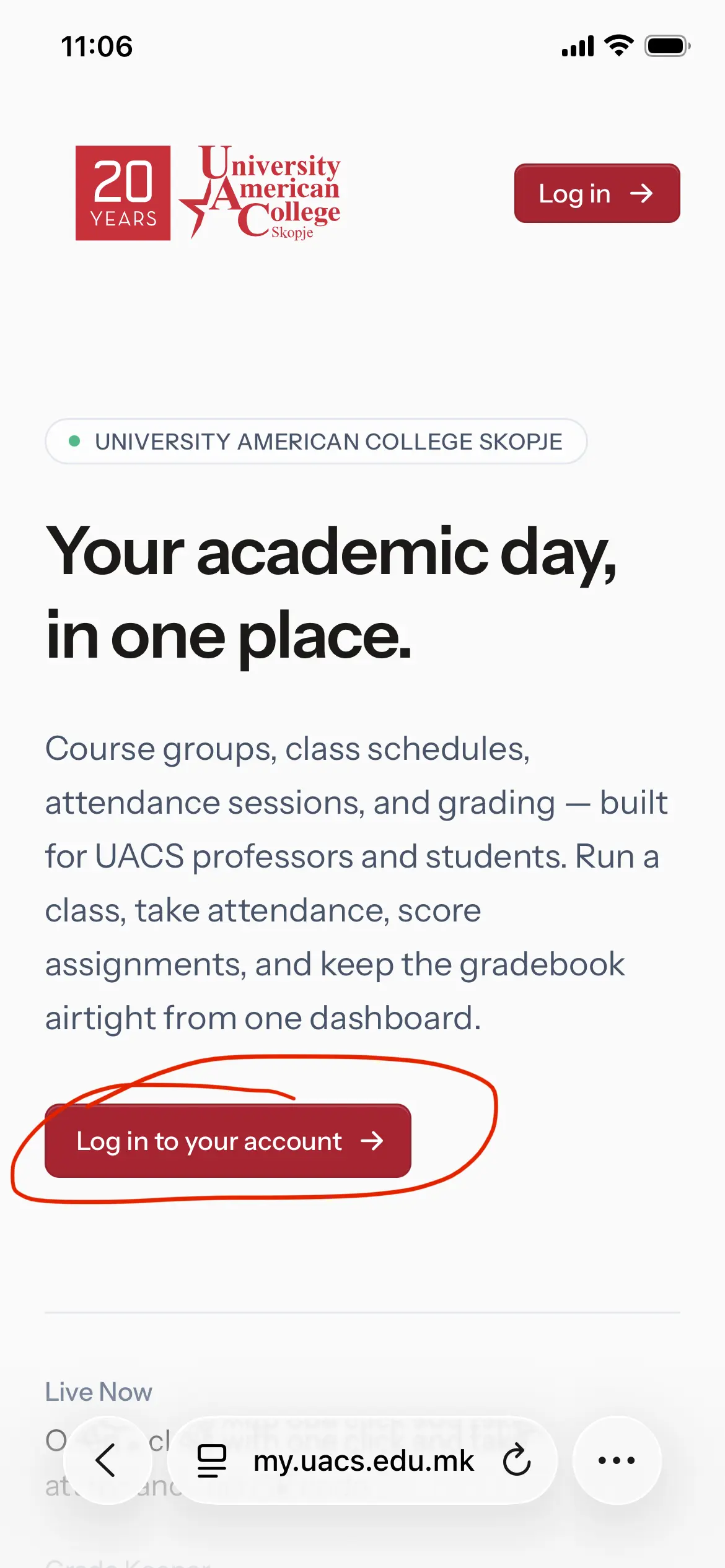
Open your browser and go to my.uacs.edu.mk. On the landing page, tap the Log in button in the top-right or the primary call-to-action.
Step 2
Reset your password
First time logging in, or do not know your password? Use the password reset option.
-
Open the login page
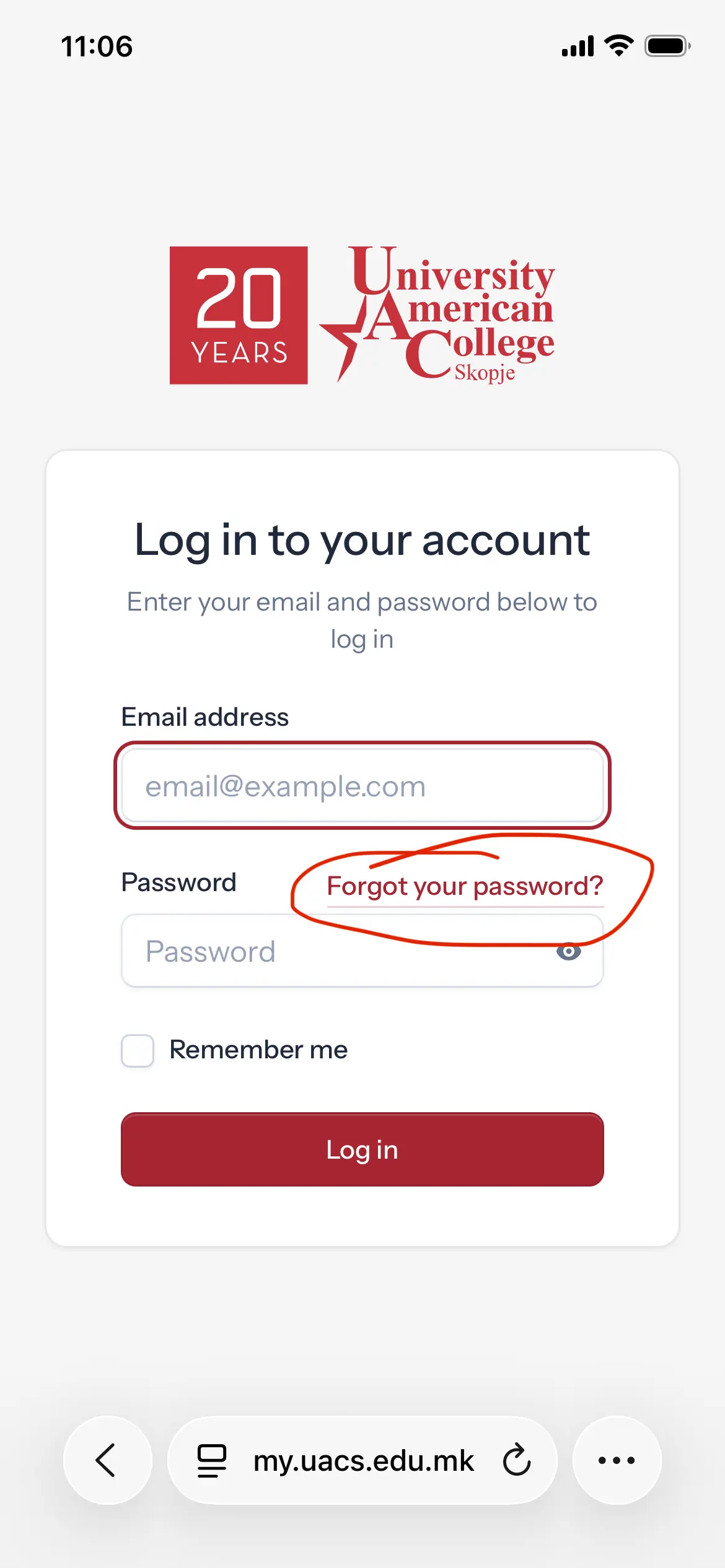
On the login screen, tap Forgot your password?
-
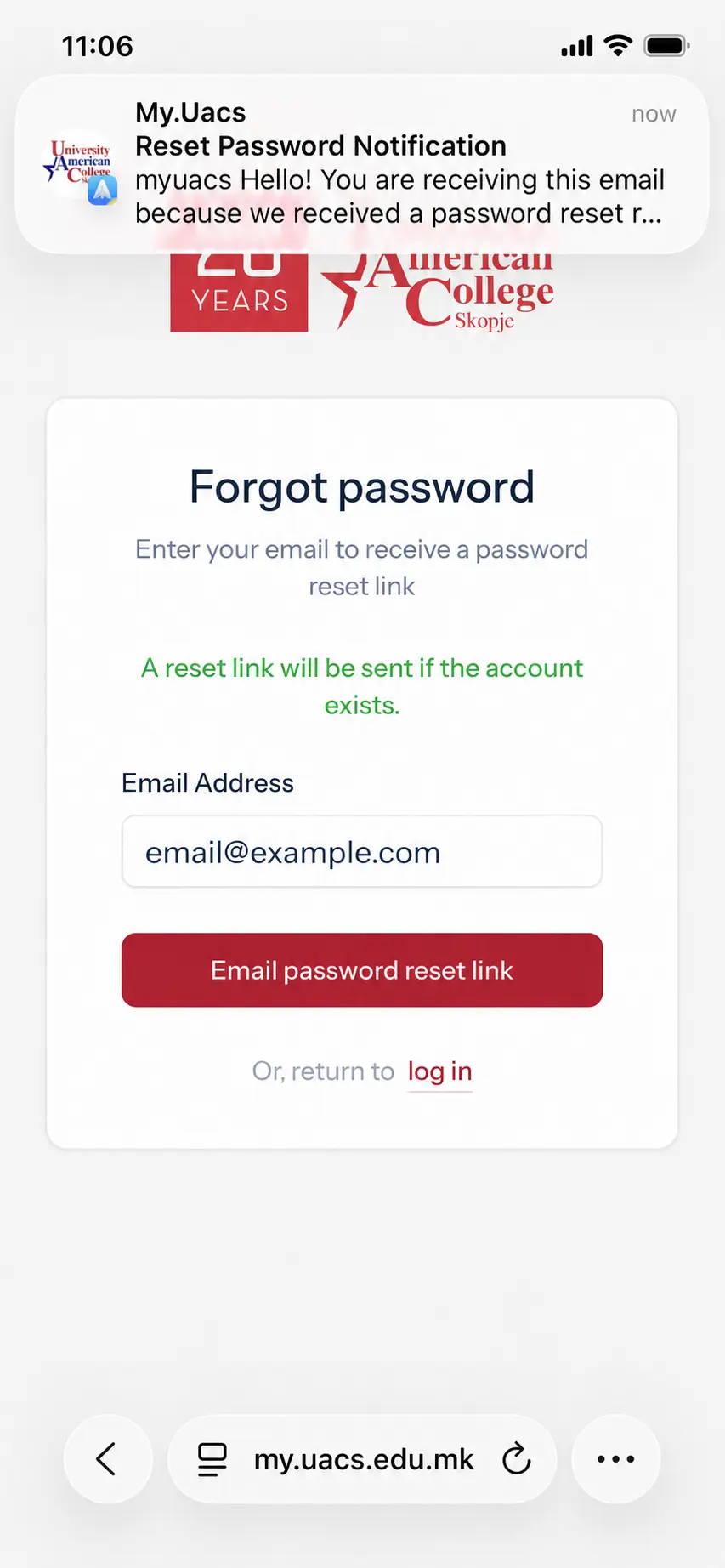
Enter your student email
Enter your email address then tap Email password reset link.
-
Open the reset link in your email
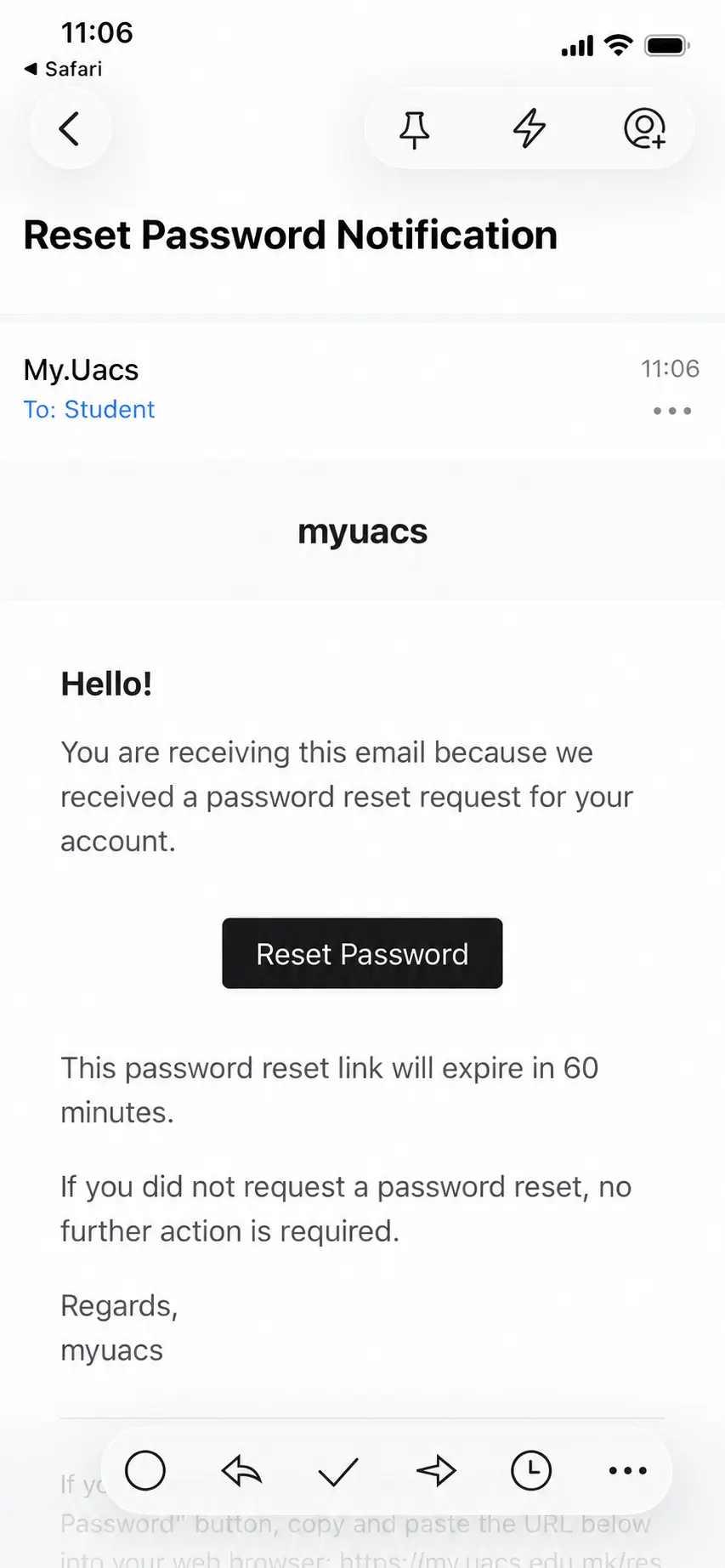
Look for an email with the subject Reset Password Notification, sent from My.Uacs. Open it and tap Reset Password. The link is time-limited, so use it as soon as possible.
-
Create your new password
- Confirm that your email address is correct.
- Enter your new password.
- Enter the same password again in the confirm password field.
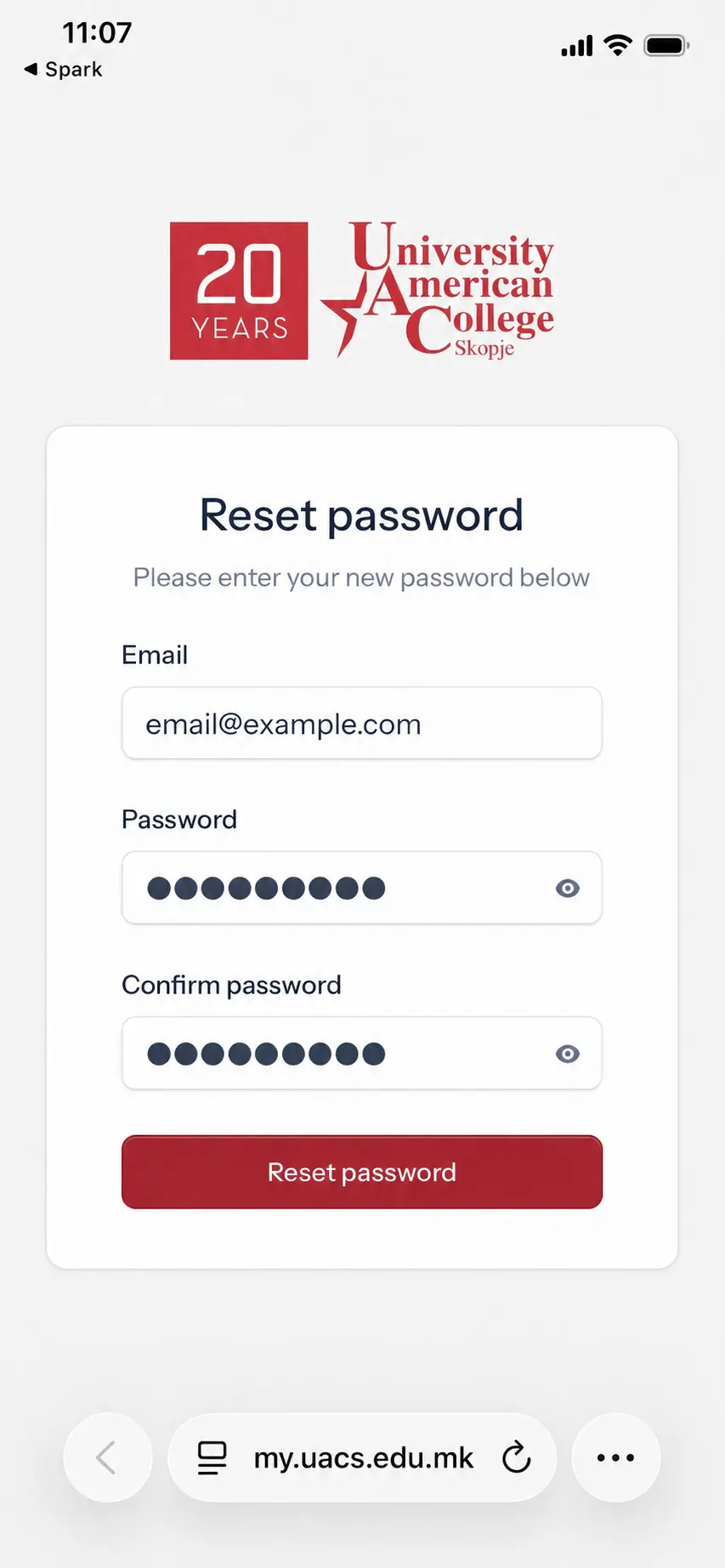
- Tap Reset password.
-
Confirmation
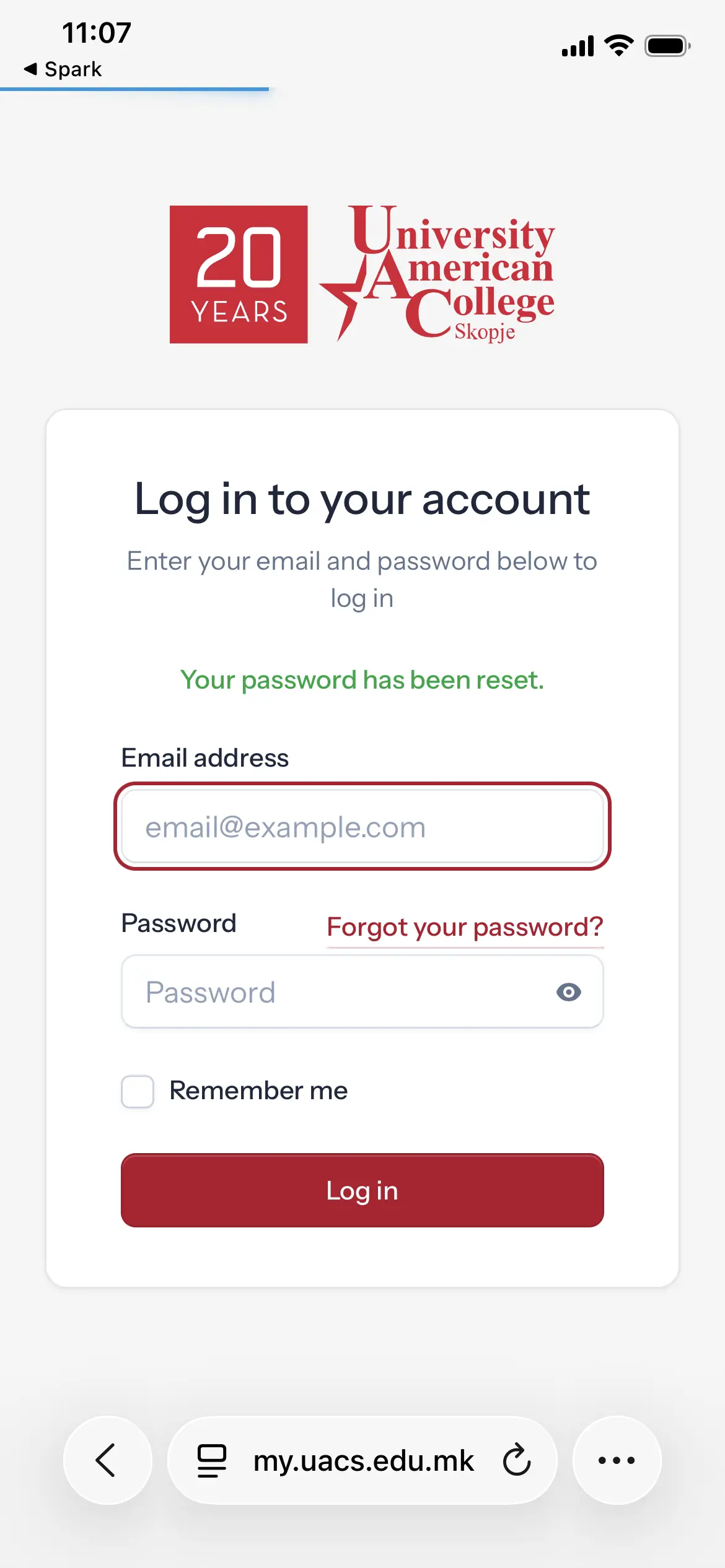
After your password is changed, you will see the confirmation: Your password has been reset.
Step 3
Log in to your account
Return to the login screen. Enter your student email and the password you just created. Tick Remember me only if you are using your own personal device, then tap Log in. You will be redirected to your student dashboard.
Step 4
Enable two-factor authentication
Two-factor authentication (2FA) adds a second security step when you log in: after your password, you enter a short code from an authenticator app on your phone. For some roles it is required; for everyone else it is strongly recommended.
- Open the menu with your name at the bottom of the sidebar, choose Settings, then open the Two-Factor Authentication tab.
- Tap Enable, and confirm your password when you are prompted.
- Open an authenticator app on your phone (for example Google Authenticator or Microsoft Authenticator) and scan the QR code shown on screen.
- Enter the 6-digit code from the app and tap Confirm.
- Save your recovery codes somewhere safe — download them or store them in a password manager. They let you sign in if you lose your phone.
From now on, each login will ask for a code from your authenticator app. If your role requires 2FA, it cannot be turned off.
Step 5
Your student dashboard
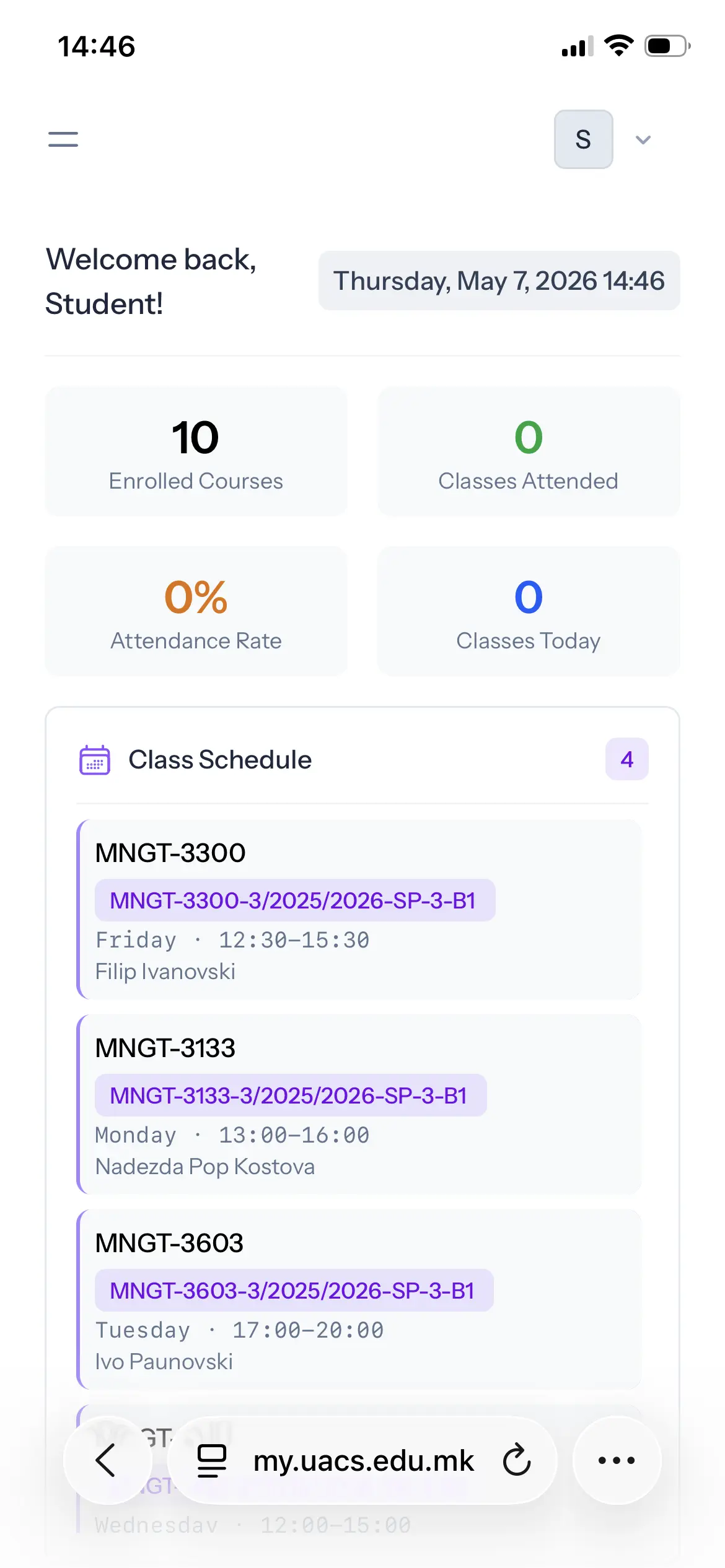
The Dashboard is your home page after login, reachable any time from the top of the sidebar. It summarises your academic standing with quick stats — Enrolled Courses, Classes Attended, Attendance Rate, and Classes Today — alongside panels for your Class Schedule, Attendance Sessions, and Live Now. Use it to plan your day and to check in when a class is active.
Step 6
Check your class schedule
Open Class Schedules from the sidebar to see your weekly, recurring timetable for the courses you are enrolled in. Each card shows the course code, group code, day of the week, time, classroom, and professor — so you always know where and when your classes take place.
Step 7
Track your attendance sessions
While the schedule shows your recurring weekly timetable, Att. Sessions (Attendance Sessions) lists the individual class meetings on specific dates. For each session you can see the course, date, time, and classroom, along with whether you were marked present, absent, or excused. These records are what build up your attendance rate, so check this page to confirm your check-ins were recorded correctly.
Step 8
View your transcript
Open Transcript from the sidebar to see your full academic record. Courses are grouped by semester and show the course code, name, group, ECTS credits, your grade and letter grade, quality points, and ECTS earned. Each semester displays its GPA, and the top of the page summarises your overall statistics — cumulative GPA, total ECTS attempted and earned, and how many courses you have completed, are enrolled in, or have failed.
The transcript always shows only your own record. Use the Print to PDF button to download a copy for your files.
Step 9
See active classes
When a class is currently in session, it appears in the Live Now panel. The card shows the course code, group, current class time, and classroom. If your class is active, you can complete your attendance check-in.
Step 10
Scan the QR code and check in
During class, your professor will display a QR code for attendance. To check in:
- Make sure you are logged in to my.uacs.edu.mk.
- Open your phone camera.
- Scan the QR code shown by the professor.
- Open the link that appears on your phone.
- Confirm the check-in if the platform asks you to do so.
After successful check-in, your attendance is recorded for that class session.
Important
Things to keep in mind
- Always use your official student email.
- Do not share your password with anyone.
- Keep your two-factor recovery codes somewhere safe — they are your backup if you lose your phone.
- The password reset link expires after a limited time.
- You must be logged in before checking in with the QR code.
- Scan the QR code only during the active class session.
- Check-in may not work if the session has expired or if the class is not currently live.
- If you cannot log in or reset your password, contact the university administration or IT support.
At a glance
Quick timeline
- 1 Open my.uacs.edu.mk
- 2 Tap Log in to your account
- 3 Tap Forgot your password?
- 4 Enter your student email
- 5 Open the reset email
- 6 Tap Reset Password
- 7 Create a new password
- 8 Log in with your email and password
- 9 Enable two-factor authentication
- 10 Open your dashboard
- 11 Review your schedule, sessions, and transcript
- 12 Scan the QR code during class
- 13 Complete your attendance check-in
Ready to log in?
Head to the login screen and bring up your dashboard.